Working with Video
Aegisub isn’t a video (or media) player, but it still supports loading and working with video in various ways. This page is a reference of how Aegisub’s loading and handling of video works; for a gentler introduction on how to just get things to display properly you may want to read the Visual_Typesetting pages.
Opening video
To load a video file, go to the Video menu and press Open video file. What video files you can open depends on your video provider. To use a dummy (mockup, blank) video, press Use dummy video.
Supported formats
Aegisub normally uses FFMS2 to open video, which supports opening nearly all common A/V formats, and many uncommon ones. For a full list of codecs supported, see FFmpeg documentation.
For best results, make sure your video is muxed in a good container format like MP4, MKV, or WebM. Opening transport streams (e.g. m2ts files) or raw streams (e.g. .h264 files) may result in slower seeking and can sometimes even cause inaccurate decoding, resulting in frames being corrupted or displayed at the wrong times. Remuxing such files to MKV using MKVToolNix will ensure faster and reliable seeking.
Dummy video
Aegisub also supports providing a bogus video surface for you to render subtitles on without having any actual video loaded. The dummy video dialog box looks like this:
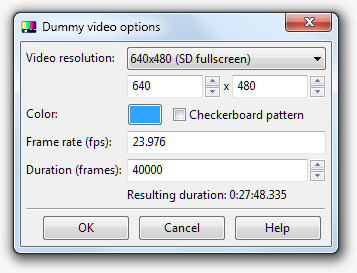
- Resolution
- The resolution of the dummy video in pixels. There are a few pre-defined choices in the dropdown menu; you can also specify the size yourself. Note that since the dummy video is RGB there are no particular restrictions with regards to odd widths/heights.
- Colour
- The colour of the video surface. The color is solid by default; tick the box “checkerboard pattern” if you want some more variation.
- Frame rate
- Determines how long each frame is displayed by setting the number of frames per second (fps). Note that it is in fact possible to load VFR timecodes with dummy video.
- Duration
- The duration of the video in frames. Below this number is shown the resulting duration in hours/minutes/seconds.
Navigating the video
Through time
You can step through the video using any of the following methods:
- Clicking or dragging the slider below the video to do rough seeking
- Scrolling over the slider below the video to go frame by frame, or holding shift while scrolling to go from keyframe to keyframe
- Using the arrow keys to step frame by frame, holding shift and pressing the arrow keys to go from keyframe to keyframe, or holding ctrl and pressing the arrow keys to step by a (configurable) larger number of frames at a time
- Jumping to the start times of lines by double-clicking them in the subtitle grid, or, if automatic seeking is enabled, simply selecting them.
- Using Ctrl+1 and Ctrl+2 or the corresponding buttons in the main toolbar to jump to the start or end time of the current subtitle line
- Middle-clicking or middle-click-dragging on the audio display
- Playing the video using the play button (but read the following section!)
Through space
By scrolling the mouse wheel over the video or using the size dropdown below it, you can adjust the size of the video display inside Aegisub. Alternatively, you can detach the video in the video menu to make it a separate, freely resizable window.
Middle-click-dragging the video display will pan the video and holding ctrl while scrolling on the video display will zoom in and out. The zoom and pan can be reset by right-clicking the video display and selecting “Reset Video Pan”.
Touchpad users can zoom using pinching gestures and pan by holding shift while two-finger-scrolling on the touchpad.
The mapping of scroll/ctrl-scroll/shift-scroll to resizing, zooming, and panning can be configured in the settings. For example, touchpad users may prefer to map scrolling (without shift) to panning rather than zooming.
Playing video
Aegisub does support playing back video, but it has been widely debated if it is a misfeature or not.
Before you press the “play” button
Think it through. Do you really want to play the video? (Hint: the answer is “no”, you don’t want to do that, at least not in Aegisub.) If you’re trying to check if a subtitle matches up to something in the video, wouldn’t it be easier to just step through the video frame-by-frame with the arrow keys? If you’re proofwatching, it would be a better idea to watch it in a player your viewers might actually use.
To conclude: in real world situations, you will never need to play the video from inside Aegisub. The mantra is: Aegisub isn’t a media player; if you want a media player use a media player. Nonetheless, Aegisub does make a reasonable effort to support reliable video playback and in practice it will usually work fine.
Note that audio has to be explicitly loaded for Aegisub to play it while playing video. If you find this bothersome, there is an option to automatically open audio whenever a video file is opened.
Keyframes
A brief, highly simplified explanation of what a keyframe is, for the people who missed Video 101:
Modern video codecs compress video by storing as little information as possible. Instead of storing all frames in full (like a large amount of JPG pictures), they take occasionally take a keyframe, which is stored fully, and for each frame after that until the next keyframe, they only store what changed in the picture since the last frame. Hence, to seek to a given frame the decoder needs to find the previous keyframe and decode all frames between that frame and the sought one, which means seeking to keyframes is faster than to other frames. Keyframes are interesting mostly for scene timing reasons, because they usually appear at scenechanges. The first frame in a scene is almost invariably a keyframe, but beware - far from every keyframe is a scenechange! Most encoders insert a keyframe at least once every 250-300 frames, even if there hasn’t been a scenechange.
Aegisub uses keyframe data at several places in the program. They are drawn as black lines on the video seek bar, and (by default) also displayed in the audio waveform/spectrum analyzer.
Loading and saving of keyframe data
When opening video through FFMS2, Aegisub supports reading keyframe data from most file formats, while the Avisynth provider only supports reading keyframes from AVI. If you are using a video format which keyframes can’t be read from, you can still load keyframe data separately. Aegisub currently supports reading from several formats: its own keyframe file format (see specification below), XviD first-pass files, DivX first-pass files, and x264 first-pass files.
Even if keyframes can be read from the file it is sometimes useful to override them with external keyframes. Using XviD first-pass .stat files for audio timing is fairly popular, as XviD’s keyframe choices correlate unusually well with scene changes.
Aegisub can also write the currently loaded keyframe data to a keyframes file, which can be useful to avoid passing video files around in certain situations (audio timing for example).
Keyframe file specification
A keyframes file is a plain ASCII-encoded text file; both \n and \r\n is understood to mean a linebreak. Syntax example:
# keyframe format v1
fps 0
0
30
70
82
130
131
The first line is the format specification: the string
# keyframe format v1. The second line contains the FPS of the video used to
generate the keyframe data; however no programs (Aegisub included) actually
support this and so it is typically just 0. Finally, after the fps line
follows an arbitrary number of long integers (one per line), each representing
the frame number of a keyframe. The frame numbers are zero-indexed; i.e. the
first frame of the video is frame number 0.
Variable framerate video
Aegisub supports loading and working with variable framerate video. The how’s and why’s of VFR is far outside the scope of this manual (see for example the VFR thread on AnimeSuki or the Avisynth manual page for more information about VFR), but we will cover what you need to know about how Aegisub handles it.
Timecodes
Loading of Matroska timecode files (v1 and v2) is supported and useful if you have a VFRaC (Variable FrameRate assumed Constant; for example the frames of an VFR MKV stored in an AVI at a constant FPS, see the VFR thread linked above for details) video file but want the subs to sync to it. If you load a VFR file, Aegisub will automatically read the timecodes from it directly.
VFR and hardsubbing
As long as you’re not encoding with GDSMux, the encoding environment your subtitling filter is working in (i.e. Avisynth, VirtualDub or mencoder) will assume that the world is CFR, and hence the input file is VFRaC. This is obviously a problem since it messes up subtitle synchronization. Aegisub provides a way around this through the Framerate Transformation export filter, which takes the framerate of the VFRaC input file and the timecodes, and then changes every time code and override tag in the script so it can be hardsubbed on the VFRaC video and still sync up perfectly after timecodes are applied. To prepare a script for hardsubbing, make sure you have the timecodes loaded, then go to the File menu and press Export. Untick everything except the Transform Framerate filter. Choose the Variable output mode. It needs to know the FPS of the video you’re going to hardsub the subtitles on; if you have video loaded Aegisub will assume that’s it and insert it in the box for you.
Note: if you have a Matroska or other VFR file loaded, remember that the FPS value Aegisub reports might not be the same as the one of the video you are going to hardsub the subtitles on.
Anamorphic video
OR: How to get your subtitles to not look stretched
The following paragraphs assumes that you have a working knowledge of what anamorphic video is and how aspect ratios work. If you feel unsure, you may want to consult a gentle but fairly complete introduction.
Image stretching and subtitle rendering
An anamorphic image needs to be stretched to the proper aspect ratio before it is presented to the viewer. On a computer, this is usually done by the video renderer, and thereby lies a problem. Most subtitle renderers (including VSFilter, the current “standard” renderer) do the subtitle drawing on the image before it is stretched, and since the renderer is not aware of any aspect ratio issues, the subtitles will be stretched along with the image when the video is displayed to the viewer, and therefore they will look stretched. Aegisub does its subtitle rendering this way as well (since that way it will be WYSIWYG with most players); you can test how it looks by using the “Override aspect ratio” in the video menu.
Compensating for the stretching
Fortunately it’s easy to compensate for the stretching, since you know by how
much the image will be stretched (since you know its original dimensions and
the display aspect ratio). You just calculate how many percent the image will
be stretched in either the X or the Y direction, and then set the ScaleX or
ScaleY parameter in the style (or use the \fscx or
\fscy overrides) to the same amount but in the other
direction.
Example: we have a 704x480 image that we know will be displayed as 16:9 (or 1.7777…:1). If we assume that the player will stretch the width but leave the height untouched, this means that the new width will be:
(16 / 9) * 480 = 853.333...
which in percent is:
853.333... / 704 = 1.212121...
i.e. 121%. Hence, to compensate for this horizontal (X-direction) stretch we set ScaleY in all our styles to 121% to stretch the subtitles by the same amount, and after rendering they now no longer look stretched.
OR we can do the stretching in the other direction, assuming that the player changes the height of the image instead. Assuming the same image: 704 / (16 / 9) = 396 which corresponds to: 396 / 480 = 0.825 or 82.5%, which means we can compensate for the vertical (Y) compression by setting ScaleX to 82.5%.
Caveats
Both of the above methods give the subtitles the proper aspect ratio, but depending on how the player does the stretching, you may get subtle variations in subtitle size. Aegisub (and indeed most video players and renderers) always changes the image width and never the height, except if you pick the “custom” aspect ratio and specify a resolution. Note that if you use the Matroska container, you may specify the display resolution directly, but player support of this varies.
Note that some odd subtitle renderers (most notably Media Player Classic’s builtin renderer) are actually a part of the video renderer and will do the subtitle rendering after anamorphic stretching, resulting in stretched subtitles and much annoyance. With MPlayer’s libass renderer, you can actually specify whether subtitles should be drawn before or after stretching by using the -vf parameter to move the subtitle renderer in the filter chain.
Further reading
For more information about anamorphic video and aspect ratios in general (a deeply obfuscated topic that appears simple at a glance) the following links may be of interest:
- A Quick Guide to Digital Video Resolution and Aspect Ratio Conversions - Absolutely essential reading for anyone who wants to really understand the topic, but unfortunately far more than everything most people ever wanted to know about it. Widescreen.org: Aspect Ratios - the history and reasons for some common aspect ratios
- Wikipedia: Aspect Ratio (image)
- Wikipedia: Anamorphic Widescreen
The video menu
The following options are available from the video menu:
Sourcefile-related
- Open video
- Opens video. Note that if you try to open another video with video already loaded, the original video will be closed first.
- Close video
- Unloads the currently open video.
- Recent
- Shows list of recently opened videos.
- Use dummy video
- Opens a dummy video (see above).
- Show video details
- Shows some information about the currently open video. Details shown are filename, frames per second (for VFR files the average FPS is displayed), resolution and aspect ratio, length and decoder. Decoder being what filter/method Aegisub used to open the file.
Timecodes-related
- Open timecodes file
- Loads a timecodes file and applies it to the video, changing the video/subtitle synchronization.
- Save timecodes file
- Saves the currently loaded timecodes as a new v2 timecodes file.
- Close timecodes file
- Unloads the currently loaded timecodes.
- Recent
- Shows list of recently opened timecodes files.
Keyframes-related
- Open keyframes
- Loads keyframe data from the given file. If you already have keyframe data loaded, it will be replaced by the one read from the file.
- Save keyframes
- Saves the currently loaded keyframes data to a keyframes file.
- Close keyframes
- Unloads the currently loaded keyframe data, if any. Note that it is not possible to unload keyframe data that was directly loaded from the video file; if you want to get rid of that for some reason, load a keyframes file with only frame 0 being marked as a keyframe.
- Recent
- Shows list of recently loaded keyframe files.
Display-related
- Detach video
- Detaches the video display and related controls from the Aegisub main window and moves it into its own window. To reattach the video to the main window, close the detached window. This feature can be particularly useful on multi-monitor setups.
- Set zoom
- Sets the video zoom level.
- Override aspect ratio
- Stretches the video to the specified aspect ratio by modifying the video width. Useful for anamorphic video (see above).
- Show overscan mask
- Draws a blue “mask” over the image, indicating the edges of the action safe (dark blue) and title safe (light blue) areas. Useful if you plan on showing your subtitles on a TV without adjustable overscan correction. For more information, see the Wikipedia pages on overscan, safe areas and overscan amounts. Aegisub follows the BBC guidelines on how big the safe areas should be.
Seeking-related
- Jump to
- Seeks the video to the given time or frame.
- Jump video to start
- Seeks the video to the start time of the currently active line.
- Jump video to end
- Seeks the video to the end time of the currently active line.